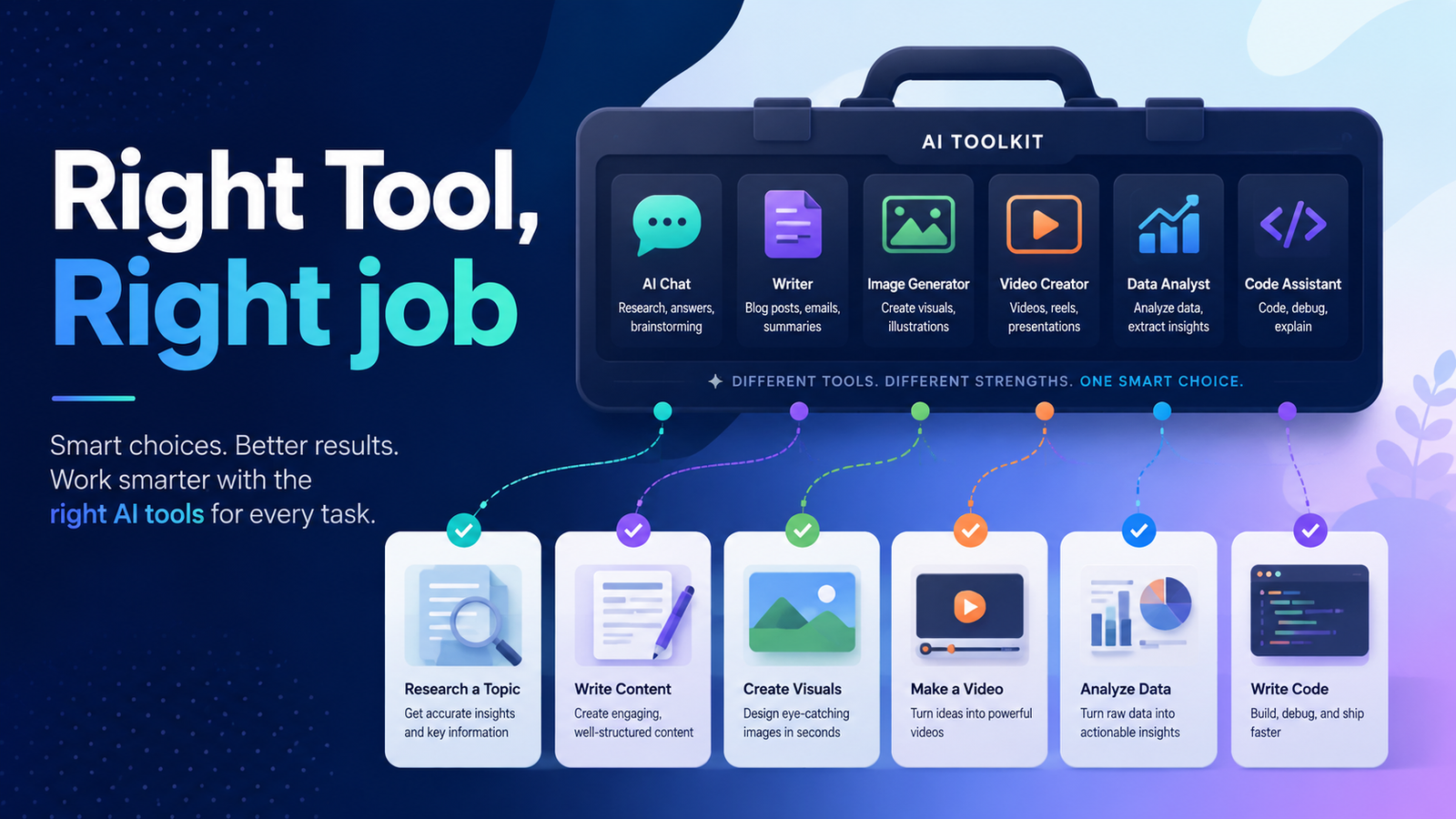
Right Tool, Right Job
The Major Players, Compared
Each of these tools was built with a different primary purpose, trained with different data, and optimised for different types of tasks. Understanding those differences is the difference between getting a great output in two minutes and a mediocre one in twenty.
The Big Four AI Tools, Decoded
| Tool | Made By | Best For |
|---|---|---|
| ChatGPT | OpenAI · GPT-4o | General-purpose writing, brainstorming, code, creative tasks. Widest ecosystem of plugins and integrations. |
| Gemini | Google · Gemini 2.0 | Research, real-time web access, summarising documents, deep integration with Google Workspace. |
| Claude | Anthropic · Claude 3.5+ | Long documents, nuanced writing, complex reasoning, large context windows. |
| AI Studio | Google · Gemini API | Builders and developers. Test prompts, build AI flows, access Gemini API directly — free. |
The One-Line Summary
ChatGPT for versatility. Gemini for research and Google Workspace. Claude for long, nuanced work. AI Studio when you’re building something.
How to Choose the Right Tool for Your Task
The fastest mental model: match the tool to the nature of the task, not just to familiarity. Most people default to whatever AI tool they signed up for first. That’s fine for getting started — but it’s a ceiling you’ll eventually hit.
Task to Tool: Quick Reference Matrix
| Task Type | Best Tool | Also Works |
|---|---|---|
| Writing & editing | ChatGPT or Claude | Gemini |
| Research & web search | Gemini | ChatGPT |
| Code generation | ChatGPT or Claude | AI Studio |
| Long document analysis | Claude | Gemini |
| Prompt testing & building | AI Studio | ChatGPT |
| Google Docs / Sheets | Gemini | — |
| Creative & brainstorming | ChatGPT | Claude, Gemini |
| Product prototyping | AI Studio | ChatGPT |
“The question isn’t which AI is best? It’s which AI is best for this specific thing I need right now?”
Walkthrough: Using Gemini for Research and Summarisation
Gemini’s biggest advantage over other consumer AI tools is its native access to the live web. For research-heavy tasks, that’s a significant edge.
Step-by-Step: Researching a Topic with Gemini
Open Gemini at gemini.google.com — free account, no setup needed.
Give it context, not just a question. Instead of “What is vibe coding?” try “I’m a non-developer looking to understand vibe coding for the first time. Give me a plain-English overview with examples.”
Ask it to summarise a document or URL. Paste in a link or upload a PDF and ask for five key points.
Ask follow-up questions in the same thread. Gemini remembers the conversation. Drill deeper with “Can you expand on point 3?”
Verify before you publish or act. Even with web access, Gemini can misread sources. Check the primary source for anything factual.
Power Move
Connect Gemini to your Google Drive. You can then say “Summarise my Q1 report” or “Draft a follow-up email based on this meeting notes document.” It removes the copy-paste step entirely.
Walkthrough: Using AI Studio to Build and Test Prompts
If you’re building anything with AI, AI Studio is where you should be doing your prompt development. It gives you direct access to Gemini’s API with a visual interface, token counter, adjustable model settings, and the ability to save and iterate on prompts systematically.
“ChatGPT and Gemini’s consumer interface is the finished car. AI Studio is the workshop where you build the engine.”
Step-by-Step: Building Your First Prompt in AI Studio
Go to aistudio.google.com. Sign in with a Google account. Generous free tier — no credit card needed.
Choose “New Prompt” and fill the System Instructions field. This sets the AI’s persona, role, and rules. Example: “You are a helpful writing coach for Nigerian entrepreneurs.”
Write your user prompt in the chat area. Test variations — short prompts, long prompts, prompts with examples.
Adjust temperature and token settings. Lower temperature, such as 0.2–0.5, means precise and consistent. Higher temperature, such as 0.8–1.0, means varied and creative.
Save and export your prompt. AI Studio generates the API call code so you can plug it directly into an application.
Integrating AI Tools into a Daily Workflow
The most powerful AI users aren’t the ones with the most tools — they’re the ones who’ve woven two or three tools deeply into how they already work.
A Daily AI Workflow for Builders
| Time | Activity | Tool |
|---|---|---|
| Morning | Research & Planning — catch up on news, summarise long reads, plan day’s priorities. | Gemini |
| Work Session | Writing & Building — drafting, editing, code generation, prompt development. | ChatGPT / Claude / AI Studio |
| End of Day | Review & Reflect — synthesise feedback, outline next day’s tasks, review long documents. | Claude |
Getting Consistently Better Outputs
The gap between beginner AI users and effective AI users is rarely about the tools — it’s about the habits and mental models they bring to every interaction.
Lead with role and context. Start prompts with “You are a…” or “I’m working on…” to anchor the AI’s response.
Be specific about format. “Give me this as a numbered list” or “under 100 words” reduces editing time dramatically.
Give an example of what good looks like. Paste in a reference. AI tools mirror patterns — use that to your advantage.
Iterate, don’t start over. Say “Make this more concise” rather than deleting and re-prompting from scratch.
Keep a prompt library. When you write a prompt that works really well, save it. A personal library of tested prompts is one of the highest-value assets a builder can have.
Match tool to task every single time. Before opening any AI tool, ask: “What is the actual nature of this task?”
“Your AI workflow is only as strong as your prompting habits. The tools are almost irrelevant — the discipline is everything.”